
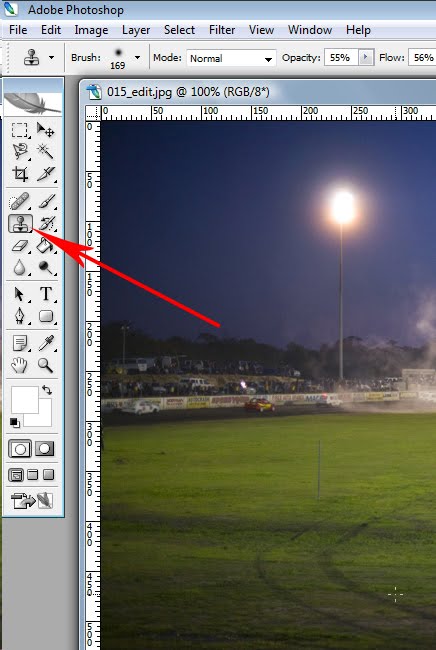
In Photoshop CS2 it lives here
Consider this image here. I was at one of the local oval track raceways on a family outing and had to take some pics of course...how could I not...the perfect excuse was testing my new 50mm f/1.4 lens. One of the cars caught fire and it went off the track for the marshalls to extinguish the fire. I thought I'd get a wide shot to show the whole scene.
Well, to be honest, I had no choice shooting the far end of the track...

I did some basic quick tweaks to this image. I had to, considering I was shooting my trusty old 5D Mk I at ISO 1600 or 3200 and the lens mostly at f/1.4...which is wide open...lovely...this is what it is meant to be able to do!!
This will make some pixel peepers out there toss and turn tonight but who cares? Photography is about getting the image.
I pulled the exposure back down by about 3/4 to one full f/stop in the RAW tool, also known as ACR or Adobe Camera Raw. The reason for this is that there is bound to be some noise in the image and doing this takes care of most of the noise.
OK, some geekspeak first...it doesn't matter if you shoot a 2014 model 120 Megapixel Hasselblad H7D or a cheap-and-nasty Pentax *iST D whatever alphabet soup is to follow, under these conditions noise will show on ANY sensor. As I am WAYYYYY too stingy for noise-fixing software (and there are some good ones) I mostly over-expose by about 2/3 f/stop, sometimes one full f/stop and simply pull the exposure back down in post processing such as ACR in this instance.
It also fits nicely with my life mission of getting it right when I push the shutter button the first time...I am (and used to be) a hard-core film shooter remember?
Please note I said most of the noise. What is visible on the screen and what is visible on a printed version of the image will be distinctly different as any half-decent monitor is capable of displaying infinitely more than what most minilabs can reproduce on paper.
I used the ACR white balance tool and adjusted the white balance manually to where my visual reference told me white was represented accurately under the yellow flood lights.
Oh, and I ended up doing a "Hue / Saturation" adjustment layer with this image here once I opened it in Photoshop.
Flattened the layers, cropped it and there we go.
There is no magic to the quoted sequence except that I mention it as I remember it. And, obviously, the white balance and exposure adjustments have to be done in ACR first before the RAW is opened into Photoshop and the rest is done.
In the near future I will do an article on RAW and the ACR tool specifically but I have a few requested items to run through first.
Right, back to the Clone Stamp Tool...
Please do not confuse it with it's brother, the Pattern Stamp Tool. Remember the little black triangles on the tool palette? They remind us that there are more tools behind the active one. As can be seen here...

Right, so we left click once on the Clone Stamp tool to select it and here the fun begins.
Now fight that urge to get up and run away...
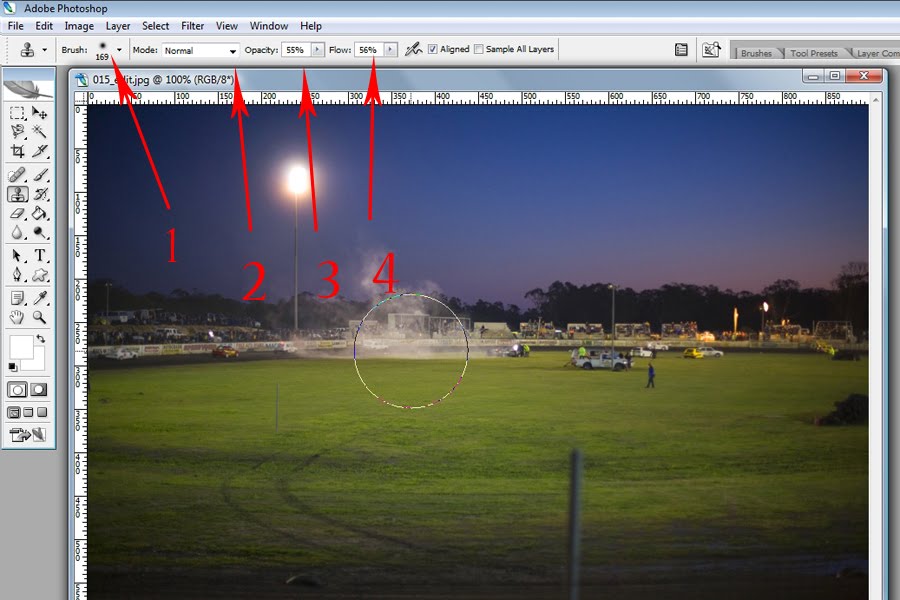
The four red arrows numbered 1 to 4 will show you the way to get going with the Clone Stamp tool.
Did you notice that the cursor suddenly changed shape when it his over the open image? It shows a circle the size of the brush as indicated by arrow number 1.
If it doesn't, go to the text menu system and go "Edit > Preferences > General. Note the keyboard shortcut "Ctrl + K"... No need for caps lock to be on.

The pop-up dialogue window will look like like this:

Click the "Next" button until you get here:

If you like, play with "Painting cursor" and "Other cursor" options to see what they do.
By now I think the importance of Rulers switched on might become clear. Also, having the ruler units set to pixels will soon become clear.
Now for arrow number 2:
As for blending mode, leave it to "Normal" for now. Later on we will experiment in much more depth when using layers and these blending modes will then have much more meaning.
As for arrows 3 and 4, think of a spray painter and his spray gun. The Opacity slider at arrow number 3 might be equal to the thinners and paint ratio in the spraygun...more thinners and less paint equal thinner coverage so you will have to pass over the same area repeatedly to cover it. The reverse is as true...more paint and less thinners equal thicker coats.
Both have their benefits and drawbacks.
As for the "Flow" slider at arrow 4, more equals more and less equals less...lower percentages for greater numbers of passes.
Now let's get to play. Remember this image here?
To start, select the brush size. Note the little button in the image below. Clicking it will give you the menu below in which you can pick the brush diameter, hardness and type.
See the circle? Just a tad over 350 pixels but the selected brush says 200? Don't worry, it is a soft brush and very often a soft brush yields the best result for this kind of job.
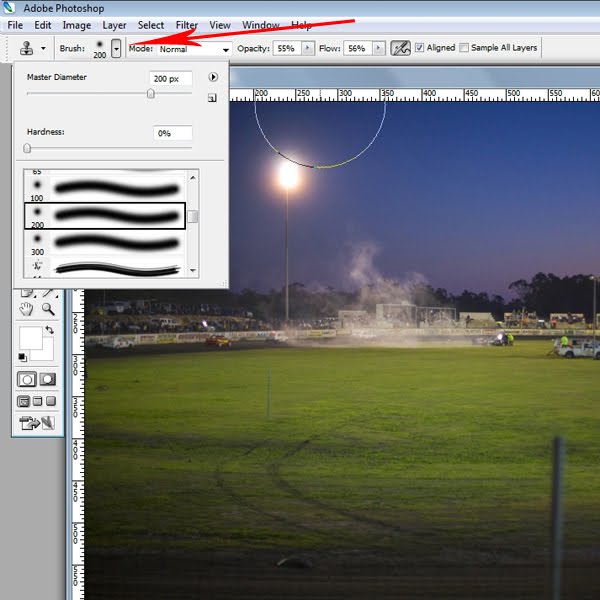
Now it is often (if not always) better to work with a smaller brush but let's see how it goes...
STEP 1: Select the Clone Stamp tool in the tool palette by left-clicking on it once.
If the Clone Stamp tool is hidden it can only be behind the Pattern Stamp tool so right-click the Pattern Stamp tool and then select the Clone Stamp tool from the pop-up icons.
STEP 2: Adjust both the "Opacity" and "Flow" sliders to around 20% to 30%. You can get more radical later but keep it simple for now.
STEP 3: Hold the cursor near the pole to the right of it with the cursor circle close but not touching the pole.
STEP 4: Hold down the "Alt" key while left-clicking once. This will define the sampling area where you want it.
STEP 5: Start removing the unwanted item click by click.
About 50 to 60 or so clicks later the pole is gone...
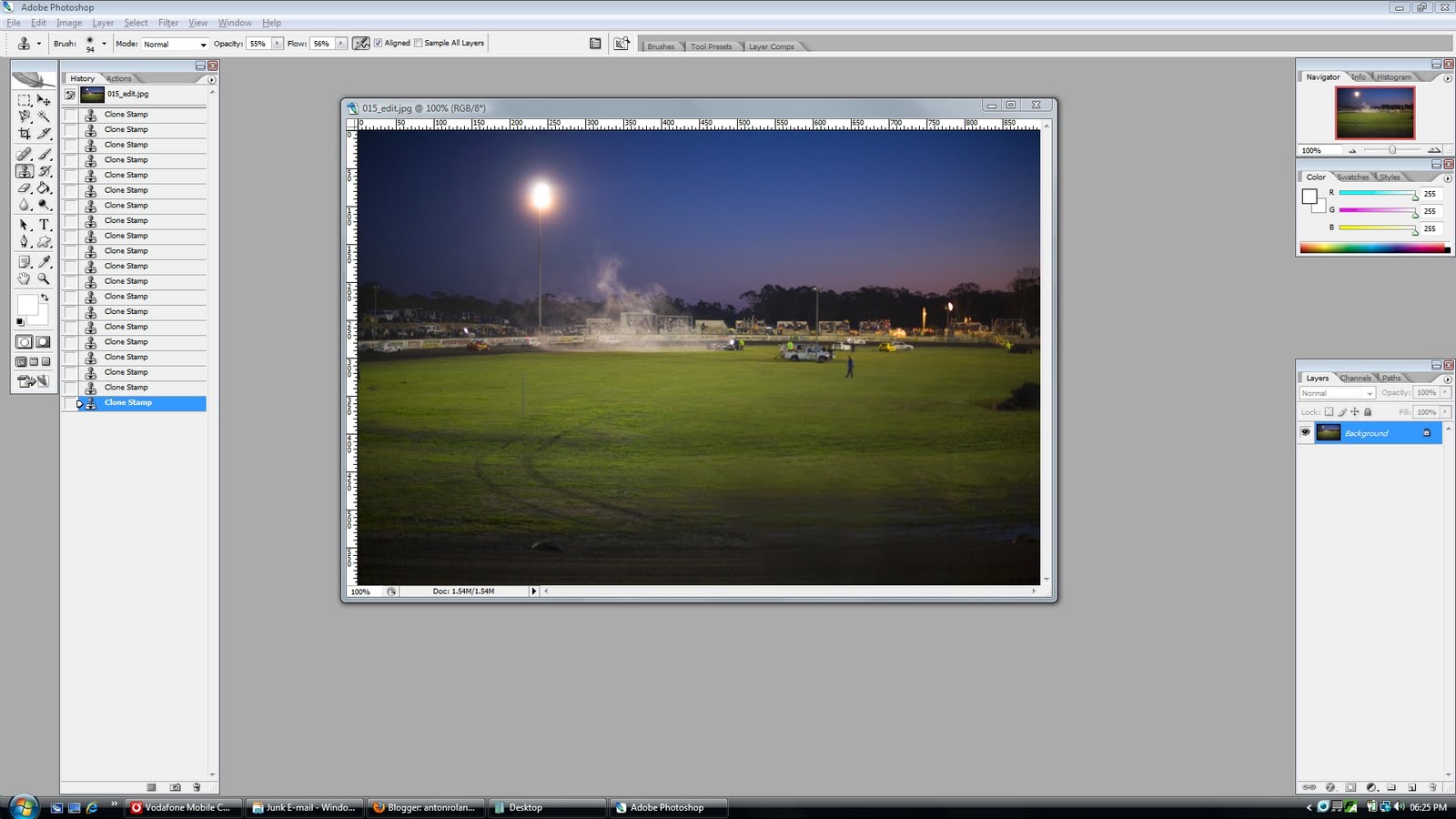
Well, not perfect, sure because this was a bit of a rush and anyone who is half sharp will see that the area where the pole was now looks a bit funny.
If you were really sharp you would have seen that I went against my own advice and used Opacity and Flow sliders set to mid fifties...bad, bad boy...
Also, I started out with a brush WAY too large and went down to a brush sized at 40 to 50 pixels.
Sadly, as with all the worthwhile things in life...there are no shortcuts. The long way round is the fastest way every single time.
What I hoped to accomplish, however, was to demystify the tool and get you to work with it. As for the rest? Practice makes perfect.
A very handy tool here is the keyboard shortcut to undo 1 step at a time...press the "Ctrl" +"Alt" + Z keys simultaneously and repeat as desired.
Note the history palette which I dragged out to my usual spot. It is filled with 20 lines of "Clone Stamp". If you should merrily clone away and reach a point where you are really not happy with things anymore your only option might be to close unsaved or click back to the "Open" state at the top of the history palette...both ways losing most or all of your previous work on that image.
A good reason to work with adjustment layers where possible I say.

As for the end result? Well, the pole is gone but this would score no higher in my books than quick and dirty. For better results apply some time and patience.
I hear some of you say you can do MUCH better than that! And I cheer you on all the way. Go on then, you can do it!
And that (thankfully) is in your hands.
As for the little hidden gem...it will have to be the parting comment...NEVER save a JPEG if you can help it. Save your images in .tiff, .psd OR simply go back to the RAW and start over from scratch. Images to be printed can be saved in JPEG ONCE ONLY right at the end of the editing process..also for web use, JPEGS are sort of essential.
Other than that, please avoid them and DEFINITELY NEVER resave a jpeg in jpeg format. There, I said it...now I can sleep tonight.
Until next time!
2 comments:
Like I have said before, I don't have Photoshop, but I use the Coral Photo Paint application of Coral Draw and have used their cloning function.
Take the plunge...you won't be sorry...LOL
Post a Comment